Cloudflare WARP Re-Authentication 12-hour
Overview
We are enhancing our security at PFCSC by requiring re-authentication when accessing applications over Cloudflare WARP (our VPN).
Every morning or 12 hours which ever happens first on a users device a re-authentication is required.
Windows Laptops - Re-Authentication
A re-authentication prompt will pop up in the lower right-hand corner near the time on the task bar. It will look something like this:
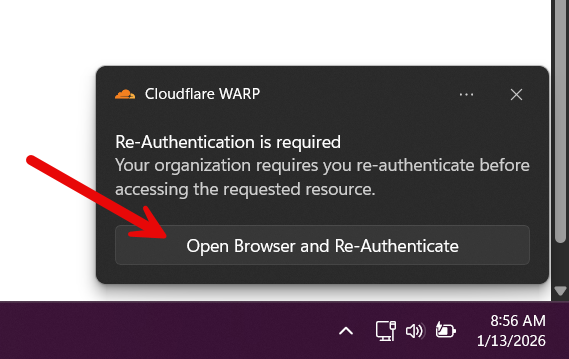
Click Open Browser and Re-Authenticate.
You may be prompted to login to Microsoft 365.
Use your firstname.lastname@pfhq.com and your password.
Confirm your two-factor authentication prompt.
Once authenticated, an Open Cloudflare WARP prompt will pop-up in your browser. Click Open Cloudflare WARP.
You will now be connected to WARP (VPN) to access files and applications on the PF network. If you receive a double prompt go through the process again.
MacOS - Re-Authentication
On a Mac laptop the re-authentication only happens when a user initiates a connection to the PF network.
Examples include: Connecting to our file server, Cognos, Great Plains, Snowflake, or TM1.
There is not a pop-up on a Mac but there will be a orange exclamation mark on the Cloudflare WARP icon.
It will look like this:
Click on the icon. Select Re-Authenticate Session
Login to Microsoft 365 with your firstname.lastname@pfhq.com and password.
Click on Open Cloudflare WARP.app.
WARP is now connected on your Mac laptop.